 SimpleACME
Open-WebUI certificates.
One DNS setup. Easier renewals.
Give your existing Open-WebUI HTTP deployment a trusted HTTPS endpoint with SimpleACME and Traefik. Keep your normal DNS API credentials off the renewal host, avoid an HTTP challenge listener, and reuse the same challenge CNAME for later renewals.
Prepare your Open-WebUI domain →Gateway integration for the browser/API endpoint. This is not a claim of a native Open-WebUI ACME plugin or a complete application installation.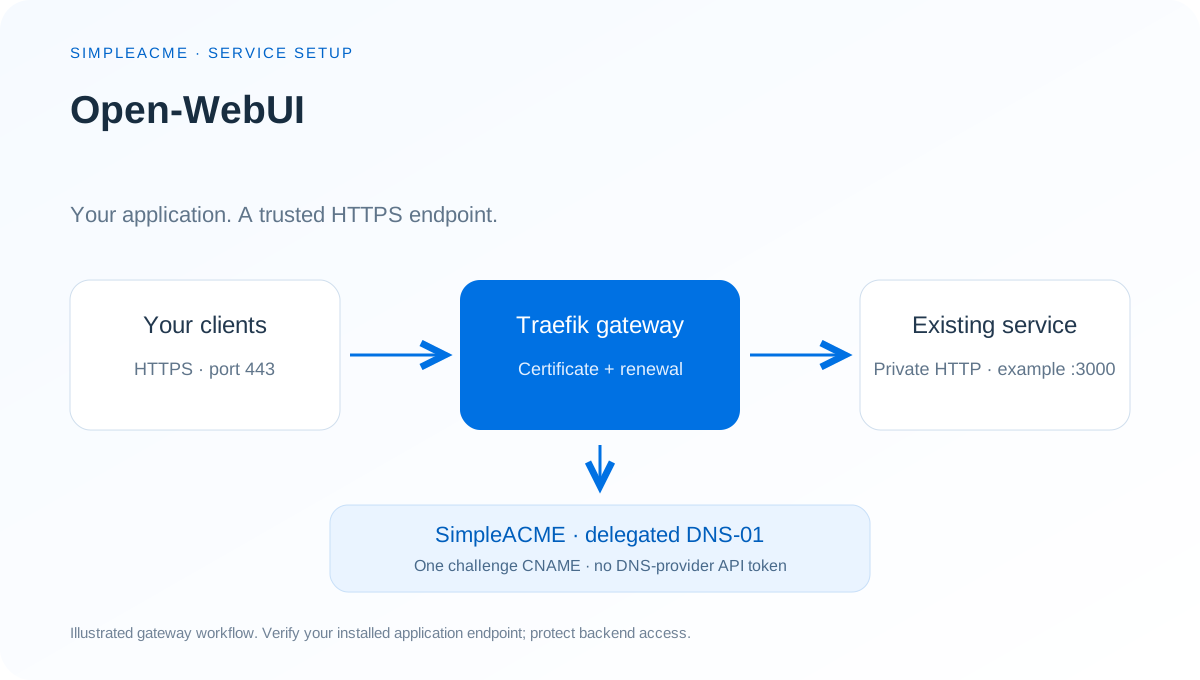
Why put Open-WebUI behind this certificate workflow?
User-friendly AI Interface, supports Ollama, OpenAI API.
For a private Open-WebUI deployment, maintaining public port-80 validation just for renewal can add routing work. A native DNS-01 client can avoid that listener but may need a supported DNS-provider integration and its credentials. SimpleACME is our preferred option when you want a permanent challenge delegation and one renewal workflow across different services.
Keep application access controls, backups and network policy in place. This guide adds an HTTPS endpoint to an existing service; it does not install Open-WebUI, provision its database, or make an unauthenticated application safe to expose.
Configure Open-WebUI step by step
Check the existing Open-WebUI endpoint
Keep Open-WebUI installed using its upstream deployment instructions. The linked source includes an example listener or published HTTP endpoint on port 3000. Confirm your own private endpoint from the gateway host before copying the router. The port is a documented example, not a universal default for every version or installation.
Choose the HTTPS hostname
Use a dedicated hostname such as open-webui.example.com at the domain root. Make it resolve to your gateway for your clients, using private DNS if appropriate. Keep the application backend reachable only by the gateway and preserve the application’s authentication.
Prepare the domain and permanent CNAME
Add the intended hostname in SimpleACME. A single-domain demo can prepare DNS before payment and cannot send TXT updates. Copy the exact _acme-challenge owner and assigned CNAME target from the domain card into your authoritative public DNS, then use Check CNAME.
Connect the certificate renewal client
Activate the matching paid domain, then configure Traefik’s simpleacme certificate resolver using the subscriber Traefik guide. Preseed the ACME-DNS account file with that domain’s existing credentials. The public /register route is closed; the client must reuse its registration. Use staging first.
Align Open-WebUI with the HTTPS origin
Set the public WebUI URL in your existing deployment settings and retain its login controls. Proxy WebSockets and streaming responses through the HTTPS endpoint; do not expose an underlying Ollama endpoint as an unauthenticated public service.
Add the Open-WebUI HTTPS router
Merge the named router and service below into the file watched by your existing Traefik file provider. Replace the example hostname and documentation address 192.0.2.10 with the real hostname and private backend IP; use your actual published HTTP port. Keep existing routers and services.
Verify the complete client journey
After staging succeeds, select the production certificate authority in your resolver. Open https://open-webui.example.com/ from an authorized client and check hostname, certificate chain and expiry. Test Open-WebUI login, uploads, WebSockets, API requests and callbacks that your deployment uses. This route covers HTTP traffic; SSH, SMTP, media, discovery and other transports require their own configuration.
Keep renewal and monitoring enabled
Leave the challenge CNAME in place and keep Traefik running with persistent ACME storage and current paid domain access. Monitor DNS challenge activity in SimpleACME and the actual served certificate independently. A TXT change is an authorization event, not proof that Open-WebUI renewed or installed a certificate.
Check the private Open-WebUI backend
curl --head --connect-timeout 5 http://192.0.2.10:3000/Run from the gateway network after replacing the documentation IP and port with your actual Open-WebUI endpoint. Authentication responses and redirects can be expected; do not disable authentication to make a test return 200.
Open-WebUI Traefik router example
# Merge these entries into the file watched by your existing Traefik file provider.
# Requires the simpleacme resolver and your pre-registered ACME-DNS account.
# Replace the hostname and 192.0.2.10 with your real hostname and private backend IP.
http:
  routers:
    open-webui:
      rule: 'Host(`open-webui.example.com`)'
      entryPoints: [websecure]
      service: open-webui
      tls:
        certResolver: simpleacme
  services:
    open-webui:
      loadBalancer:
        passHostHeader: true
        servers:
          - url: 'http://192.0.2.10:3000'
The fragment assumes a websecure entrypoint and a simpleacme resolver already configured by the subscriber Traefik guide. Merge entries into the watched dynamic file rather than overwriting other applications. Replace the sample hostname with the exact paid hostname; keep credentials and certificate storage private.
Verify the trusted HTTPS endpoint
curl --head --resolve open-webui.example.com:443:192.0.2.20 https://open-webui.example.com/Replace the second documentation address with the gateway IP and use this after a trusted production certificate is installed. Staging certificates are intentionally untrusted. Do not hide trust or hostname errors when validating the production setup.
Compare ACME validation for Open-WebUI
| Requirement | SimpleACME + gateway | HTTP-01 | Native DNS-01 |
|---|---|---|---|
| Inbound HTTP solely for validation | Not needed | Port 80 challenge must be reachable | Not needed |
| Normal DNS-provider API credential on renewal host | Not needed; separate challenge credentials | Not needed | Usually a provider credential or authenticated integration |
| DNS host API compatibility | Requires the challenge CNAME, not a native DNS API | Independent of DNS API | Depends on the selected DNS client/plugin |
| Wildcard validation | DNS-01 with appropriate paid coverage and client configuration | Not supported | Supported by suitable clients |
| Recurring DNS configuration | Keep one CNAME per challenge owner | Maintain challenge routing | Maintain credential scope and integration |
| Application integration | Reuse the gateway across HTTP services; configure each app origin | Maintain responder/routing and certificate deployment | Maintain ACME client and certificate deployment |
| Price and dependency | Yearly SimpleACME subscription; gateway and service availability | Can be free with an existing client/CA | Provider and client dependent |
Our recommendation for Open-WebUI: choose SimpleACME when private-service validation, fewer DNS credentials and a reusable gateway matter most. HTTP-01 remains a valid choice for an already-public responder; narrowly scoped native DNS automation can also suit an existing deployment.
Client guides and application sources
Traefik full configuration · Certbot hooks · Certbot Docker · win-acme PowerShell · AI setup assistant. Complete subscriber assets require active paid access. For native certificate imports, use the application’s deployment documentation and a suitable certificate-deployment hook.
- Open-WebUI project website ↗
- Open-WebUI endpoint and deployment source ↗
- Open-WebUI configuration reference ↗
- Traefik ACME DNS challenge reference ↗
Source review: 2026-11-08. Product versions and deployment packaging change; verify the actual listener and application settings before applying the example.
Software summary from Awesome-Selfhosted’s Open-WebUI record, licensed CC BY-SA 3.0. Gateway instructions and illustration by SimpleACME. No vendor affiliation is claimed.
Open-WebUI certificate FAQ
Does SimpleACME issue the Open-WebUI certificate?
SimpleACME publishes the delegated DNS-01 TXT challenge. In this guide Traefik requests, renews, stores and serves the certificate. The portal does not issue certificates or receive your certificate private key.
Does Open-WebUI need a native SimpleACME plugin?
This guide uses an HTTPS gateway in front of an existing Open-WebUI HTTP deployment. It does not require a native Open-WebUI ACME plugin. Keep the application’s public URL, trusted proxy and callback configuration aligned with the gateway.
Do I give Open-WebUI or Traefik my DNS API key?
This delegated workflow uses the assigned SimpleACME challenge credentials rather than a normal DNS-provider API token. You still need authorized DNS access for the initial challenge CNAME, and must protect the challenge credentials.
Can Open-WebUI remain private?
Yes. The gateway needs to be reachable by authorized clients, but a public inbound HTTP-01 listener is unnecessary. The challenge DNS must resolve publicly; the ACME client needs outbound access to the certificate authority and SimpleACME.
Does the example port work for every Open-WebUI installation?
No. Port 3000 is an endpoint found in the linked upstream deployment or documentation example. Confirm your installed service’s actual listener, published port and protocol before applying the router. Development and packaged deployments can differ.
Can I use a wildcard for Open-WebUI?
Use a suitable paid wildcard domain and DNS-01 client configuration if several service hostnames share a domain. *.example.com matches first-level names such as app.example.com; it does not by itself cover example.com or deeper names.
Does this install a certificate inside Open-WebUI?
The example terminates TLS at Traefik and uses a private HTTP backend. It does not import a certificate into the application or encrypt that backend hop. Native TLS, end-to-end encryption and non-HTTP transports require the project’s certificate deployment instructions.
Will certificate renewal continue automatically?
Keep Traefik running with persistent ACME storage, the permanent CNAME, network access and an enabled paid domain. Monitor both renewal errors and the certificate served to clients. Existing certificates remain valid until expiry; a challenge update alone does not prove successful renewal.
More Open-WebUI setup resources
Search all service guides → · Find your DNS host’s CNAME guide →
Your next certificate. A little less complicated.
Keep your DNS provider and your ACME client.
Prepare your domain before activating paid updates.